
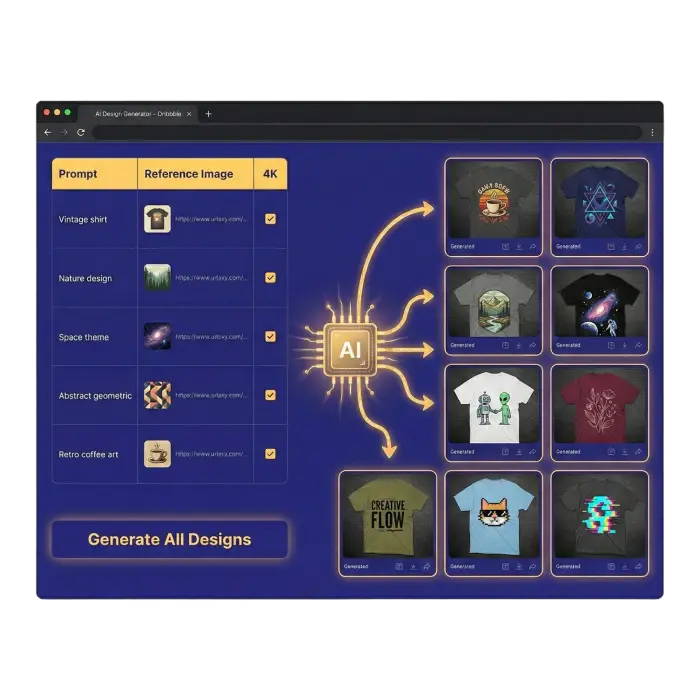
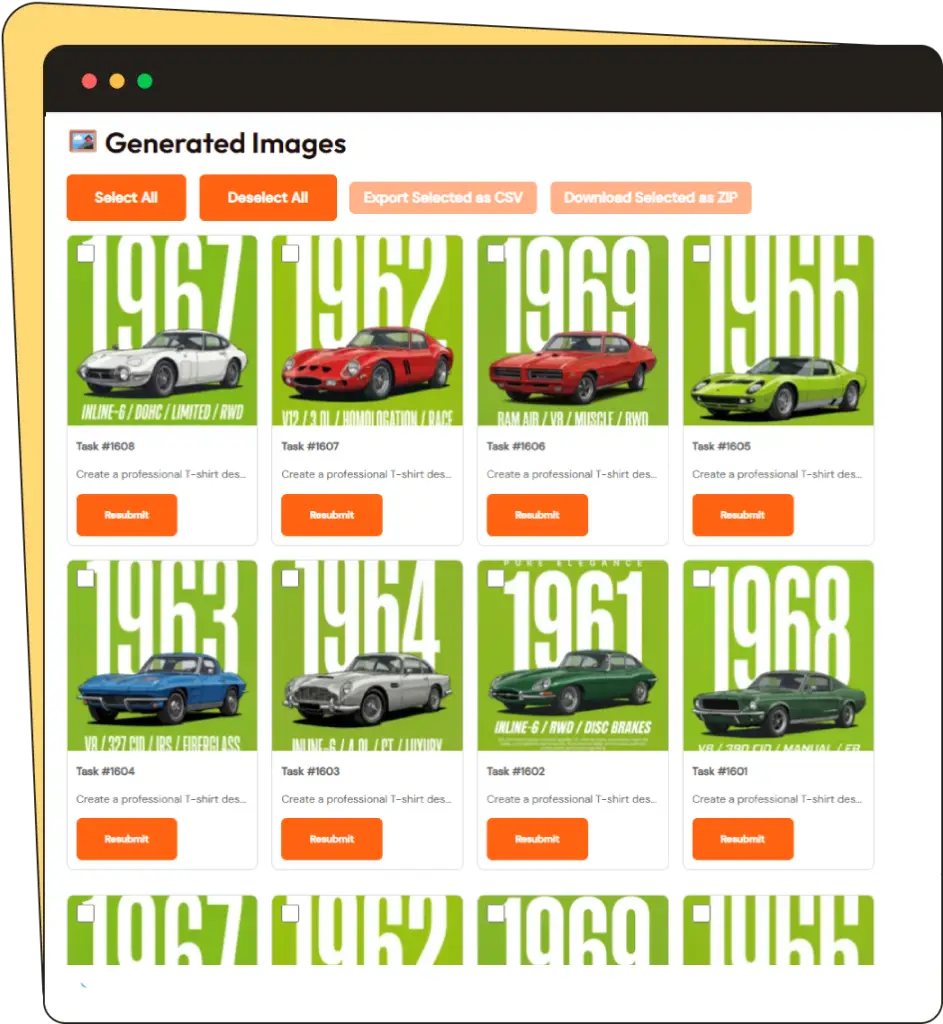

Generate AI images in bulk using a CSV.

Instead of generating images one by one, upload a spreadsheet with prompts and reference images and generate large batches at once. Built for speed, scale, and real workflows.

When one-by-one generation is not enough

AI image tools are fine for single images, but they fall apart when you need dozens or hundreds. The process becomes repetitive, time-consuming, and frustrating, especially when you want to compare different ideas. By using a CSV-based batch workflow, you can run all generations at once and focus on selecting the images that work instead of manually generating each one.

Who is NanoBatcher for?

Gemini_Generated_Image_daaaymdaaaymdaaa.webp

E-Commerce

Use your product photos as "Reference URLs" and generate unlimited lifestyle backgrounds.
unnamed-1.webp

Print-on-Demand Sellers

Spot a new trend? Don't wait. Create a CSV with 50 prompt variations around that trend. Generate them all at once.

unnamed-2.webp

Designers & Art Directors

Use Batch Mode for "Visual Brainstorming." Input 20 different stylistic prompts to explore directions rapidly.

Gemini_Generated_Image_yu8m3dyu8m3dyu8m.webp

Marketers & Agencies

Stop designing ads one by one.Generate 50 visual hooks for the same product. A/B test massive variations and scale the winners.

Gemini_Generated_Image_so4yxjso4yxjso4y.webp

Social Media Managers

Batch create an entire month's worth of content in one afternoon. Maintain a consistency using reference image control.

unnamed-3.webp

Real Estate

Rapidly Visualize Renovation Potential. Turn empty or outdated spaces into dozens of photorealistic design concepts in minutes.

How it works?

1

Prepare a CSV

Add prompts, optional reference image URLs, resolution settings, or any custom data such as SKUs or IDs. Please refer to our demo CSV to understand the required format.

2

Run batch generation

Upload your file to begin. The system will read all rows and process prompts in parallel. Please note that generation time varies from a few minutes to a few hours, depending on the volume of images and current server load.

3

Review results

Once processing is complete, your images will appear in the dashboard. You can then review the results and download them as a ZIP or CSV file. Alternatively, you can select specific images to refine and resubmit with corrections.

Choose your package

Starter Batcher

$19/month

  • 100 credits per month
  • Unlimited CSV Uploads
  • Reference Image Support
  • 2K / 4K Support
  • Custom Data Support
  • 24/7 Support
Join Now

Advanced Batcher

$85/month

  • 500 credits per month
  • Unlimited CSV Uploads
  • Reference Image Support
  • 2K / 4K Support
  • Custom Data Support
  • 24/7 Support
Join Now

PRO Batcher

$150/month

  • 1000 credits per month
  • Unlimited CSV Uploads
  • Reference Image Support
  • 2K / 4K Support
  • Custom Data Support
  • 24/7 Support
Join Now

Need Custom Plan?

  • 1000 credits per month
Contact Us

Discover answers to our most frequently asked questions.

Q. How long does image generation take?

Processing times vary based on server load. Whether you upload a small or large batch, results typically appear within a few minutes to a few hours.

Q. How should I format my CSV file?

To ensure the system processes your bulk request correctly, your CSV file should contain the following columns. You can download our  Demo CSV to see these columns in action.

1. Prompt (Required)

  • What it is: The text description of the image you want to generate.

  • How it works: This is the most important column. The AI uses this text to create your image.

  • Example: A futuristic sneaker, orange and white, side profile, studio lighting.

2. Reference Image URL (Optional)

  • What it is: A direct link to an existing image you want the AI to use as visual inspiration.

  • How it works: The system will use the composition, color, or style of this image as a baseline.

  • Important: The link must be publicly accessible (e.g., ending in .jpg or .png). Links to private Google Drive folders or password-protected sites will not work.

3. Resolution (Optional)

  • What it is: Set generated resolution to 2K (Default) or 4K. Use 0 for 2K and 1 for 4K.

4. Custom Data / SKU / ID (Optional)

  • What it is: Your own internal identifiers, product codes, or file names.

  • How it works: The system ignores this data during generation but includes it in your final download. This helps you match the generated images back to your original product list easily.

  • Example: PROD-001, Summer_Collection_v2.


Need a starting point?

We highly recommend downloading our Demo CSV Template. It comes pre-filled with the correct headers and example rows so you can simply replace the data with your own and upload it without errors.

Q. What happens if I am not satisfied with a generated image?

You don't need to start over. Simply select the specific image in your dashboard, make corrections to the prompt or settings, and click "Resubmit" to generate a new version.

Q. How do I download my results?

Once processing is complete, you can download all images at once as a ZIP file. You can also download a CSV file that includes the generated image URLs mapped back to your original data (SKUs/IDs).

Q. How many images can I generate with 100 credits?

Our credits system works very simple. 2K image = 1 credit. 4K image = 2 credits. On 100 credits you can generate 100 2K images and 50 4K images.

Q. What happens after payment?

You will get an email with login credentials. Your credits are added instantly. Your account is ready to use immediately. No manual activation required.

Q. Can I upgrade later?

Yes. Contact our support and they will upgrade or downgrade your account immediatly.